Account Access and Recovery
This guide explains the common sign-in, recovery, and account-linking paths.
Admin sign-in
Admins sign in to operate organization or page admin areas.
If you belong to more than one workspace, make sure you are opening the intended workspace before changing settings or publishing updates.
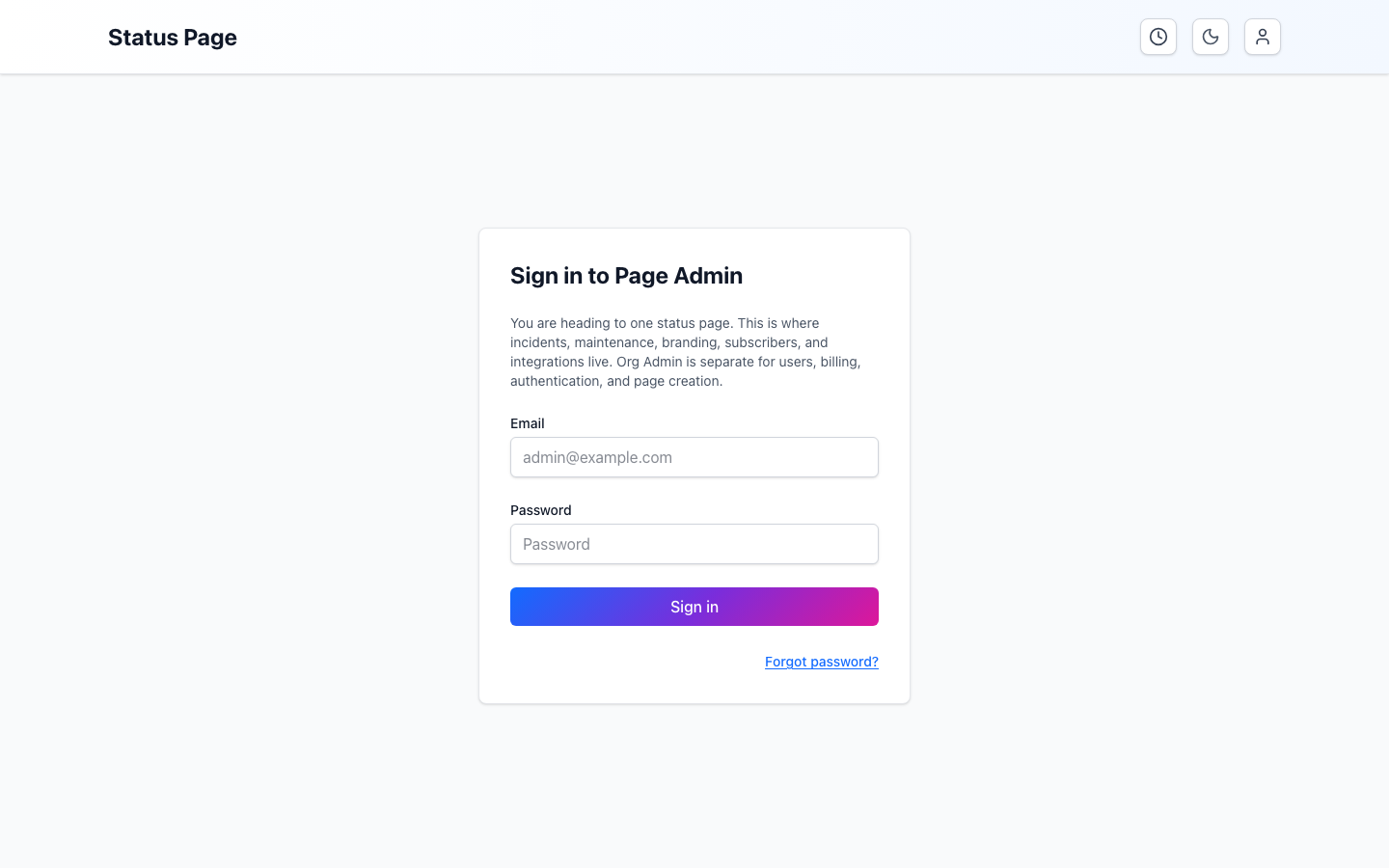
Password reset
Use password reset when an admin cannot sign in with their current password.
The normal flow is:
- Open the password reset page.
- Enter the admin email address.
- Follow the link sent to that address.
- Choose a new password.
- Sign in again.
If the email does not arrive, check spam filtering and confirm that the email address belongs to the workspace.
SSO sign-in
Some workspaces use SSO for admin sign-in.
When SSO is enabled, admins should use the configured identity provider. If an admin cannot sign in, check:
- whether the user exists in the workspace
- whether the identity provider allows access
- whether group mappings or role assignments are current
Slack account linking
Slack account linking connects a Slack user to their StatiBeat admin identity.
Linking is needed when Slack workflows should respect the user's StatiBeat permissions. If a Slack workflow says the user is not linked, follow the link shown in Slack and sign in with the matching StatiBeat account.
Viewer access is separate
Private status-page viewers may use a shared password or viewer SSO. That access lets someone read a private page, but it does not make them an admin.
For private-page access, see Page Routing and Viewer Access.
Related docs
- See SSO and Access
- See Page Access
- See Organization Admin